

01 · Plan a trade
Plan the trade.Before the price tempts you.
Decide the price you'd act at before the market tempts you — and write down why. Jarvis compares what you planned with what you actually do.

Step 1 of 4
Open Target Trades. Everything you plan to buy or sell is here, with how far each stock is from your price.
On iPhone, Target Trades is the second tab; + is at the top right.
02 · Record a trade
Record what happened.Not what you meant to do.
When the price hits your target and you act, record what actually happened. Invest keeps the honest record: what you planned, what you did, and whether they matched.
Step 1 of 4
Find the target you acted on in Target Trades — here, a plan to buy 30 more CNR at $138.
On iPhone, open the target from Target Trades and tap Complete.
03 · Holdings & dividends
See what you own.Worked out from what you did.
You never type in share counts or balances. Holdings, cash and dividends all come from the trades you record — so the numbers always add up, account by account.
Step 1 of 4
Holdings lists every position: shares, average cost and what you've invested, all calculated from your trades.
On iPhone: Holdings is a tab; Cash is under More; tap a position for its trades and dividends.
04 · Trade grades
A call on every name.And a record of whether you listened.
Every holding and every idea on your list gets a grade, a suggested action and a one-line reason. Then Invest keeps score of something most tools ignore: whether you followed your own calls.
- Open Trade grades. Each name shows a letter grade, an action — add, trim, hold, exit — and why.
- Order the board by category or by grade to see where this week's decisions are.
- Look at Ideas to consider: a short weekly list of new names. Add one to your list, or pass.
- Check your scorecard. It shows how often you acted on your own calls, and how your exits turned out.
iPhone: the Grades tab. Web: Invest → Trade grades.
05 · Import a statement
Your broker's file in.Nothing changes until you say so.
If your records and your broker disagree, Invest doesn't quietly overwrite either one. It shows you each difference and lets you decide.
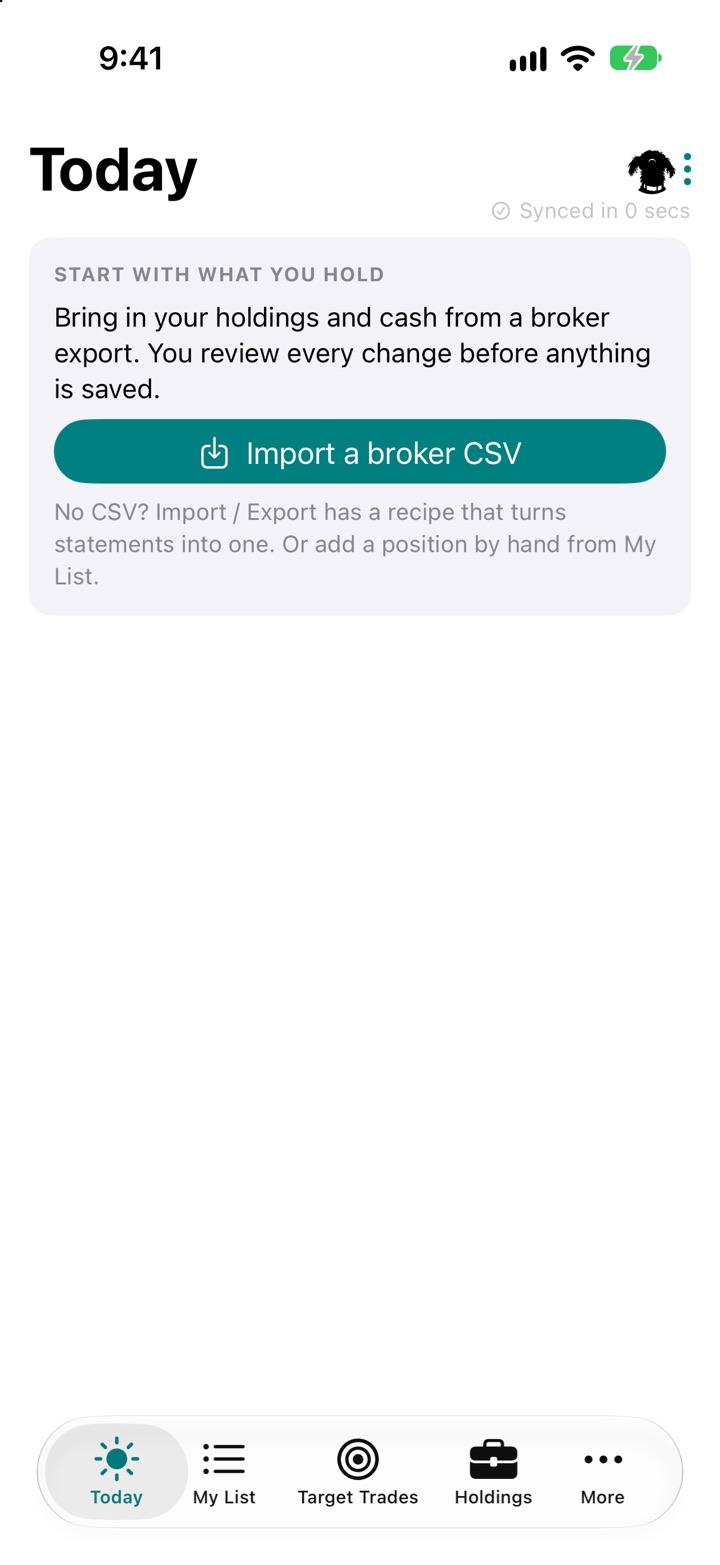
iPhone: the menu → Import / Export. Web: Invest → Holdings → Import CSV.
In real use
Not a mock-up.
- trade plans written before the trade was placed
- 25
- to set up from a broker file, start to finish
- 5 min
- trades Invest has ever placed on anyone's behalf
- 0
Counts are from the builder's own account, as of 15 November 2026. Setup time is the app's own estimate.
Access today
Who can use it right now.
Invite only
New accounts wait for approval. Once you're in, Invest is the app you get first.
- The iPhone app is a private build — it isn't on the App Store or TestFlight yet.
- Invest never places trades. You trade at your broker, then record it or import your broker's file.
- There's no live broker connection yet — holdings come in by file, and you confirm every change.
- Trade grades appear once the daily grading run has covered your names; a brand-new account starts empty.
Better together
One account. Each app knows what the others know.
Questions
A few things you might wonder.
Do I need the iPhone app, or is the web enough?
Either works on its own. Plans, trades and holdings sync between the iPhone app and jarvis.budgecorp.com, so you can plan on your laptop and record the fill from your phone.
Does Invest place trades with my broker?
No. Invest is your trading journal: you trade at your broker as usual, then record what happened. Statement imports reconcile it with your broker, and you confirm every change.
What does “Per plan” mean?
You traded the way you planned — roughly the shares and price you wrote down. If you didn't, it's “Deviated” with a short note on what changed. Over time this is what your trade grades are built from.
Why write an invalidation?
It's the sign you'd be wrong — decided while you're calm. When you complete or review a trade, Invest asks whether it triggered and whether you acted on it.
Where do the grades come from?
Invest works them out for every name you hold or follow, and refreshes them as things change. A grade is a prompt to look, not advice to trade — the decision stays yours.
Is this my real data in the videos?
No. The videos use a demo account with made-up holdings and plans.
What does it cost?
Nothing yet. Jarvis is in private use while it's being built, and no pricing has been set.
What happens to my data?
It's yours. It isn't sold, isn't shared for advertising and isn't used to train AI. It's stored encrypted, and only your own account can read it. Read the privacy page.
Can I get my data out, or delete it?
Yes. On the web, Settings → Your data has Export my data and Delete my account. A deleted account locks straight away and is erased within 30 days.